You have a 4GB video, a folder of design files, or a huge presentation, and you need to share big files for free right now. No account, no subscription, no “file too large” error.
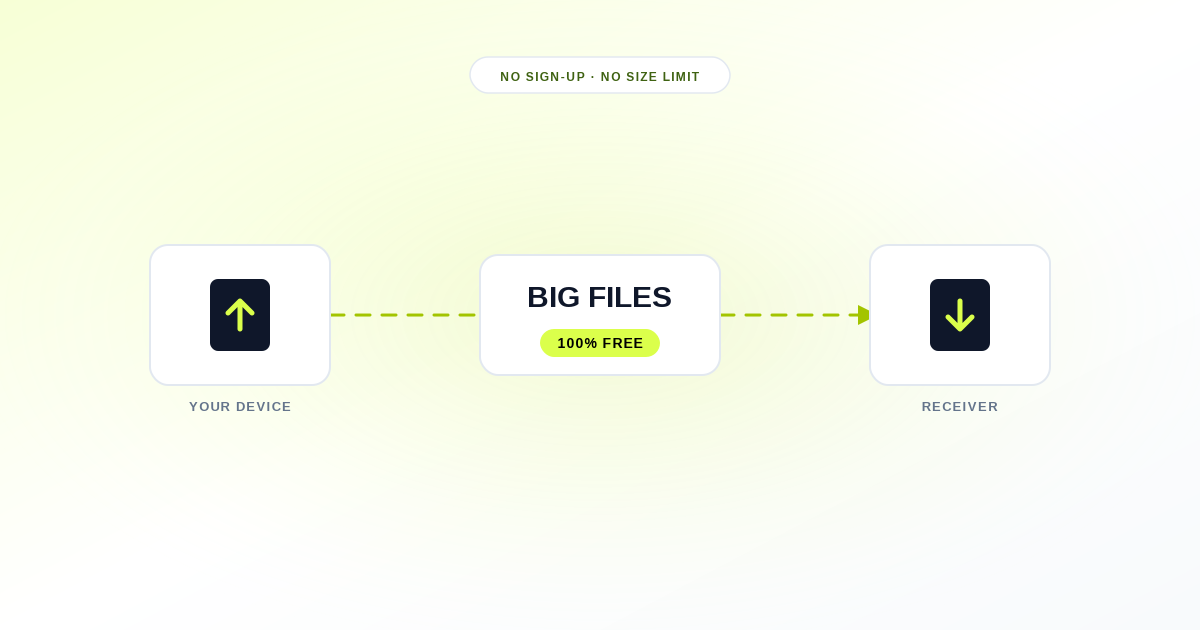
The quick answer: use a peer-to-peer file sharing tool like FileDropShare. You add your file, copy the link, and the other person downloads it straight from your device. There is no upload wait, no sign-up and no size cap.
Below you will find the 3-step method, a comparison of every common way to send large files, and answers to the questions people ask most.
How to Share Big Files for Free in 3 Steps
- Open FileDropShare in your browser. Nothing to install and no account to create.
- Click “Add file” and choose your file. You can pick several files at once.
- Copy the link or show the QR code and send it to the receiver. They open it on any device and the download starts right away.
Keep your browser tab open until the download finishes. Because the file goes directly from your device to theirs, closing the page ends the transfer.
4 Ways to Share Big Files Online (Compared)
1. Email attachments
Email is the first thing most people try, and the first thing to fail. Most providers cap attachments at roughly 20 to 25MB, so a single photo album or video clip is often too big.
- Best for: small documents.
- Problem: large files bounce back with a “file too large” message.
2. Cloud storage links (Google Drive, Dropbox, OneDrive)
You upload the file, then share a link. This works for big files, but you pay for it in time and storage.
- Best for: files you want to keep online long term.
- Problem: free plans have limited storage, the upload has to finish before anyone can download, and most services want you to sign in.
3. Free file transfer websites
Services built for sending files, such as WeTransfer, let you share without much setup. Free plans usually come with a size cap per transfer and a link that expires.
- Best for: medium-sized files when you don’t mind the cap.
- Problem: the cap, plus your file sits on someone else’s server while the link is active.
4. Peer-to-peer sharing (FileDropShare)
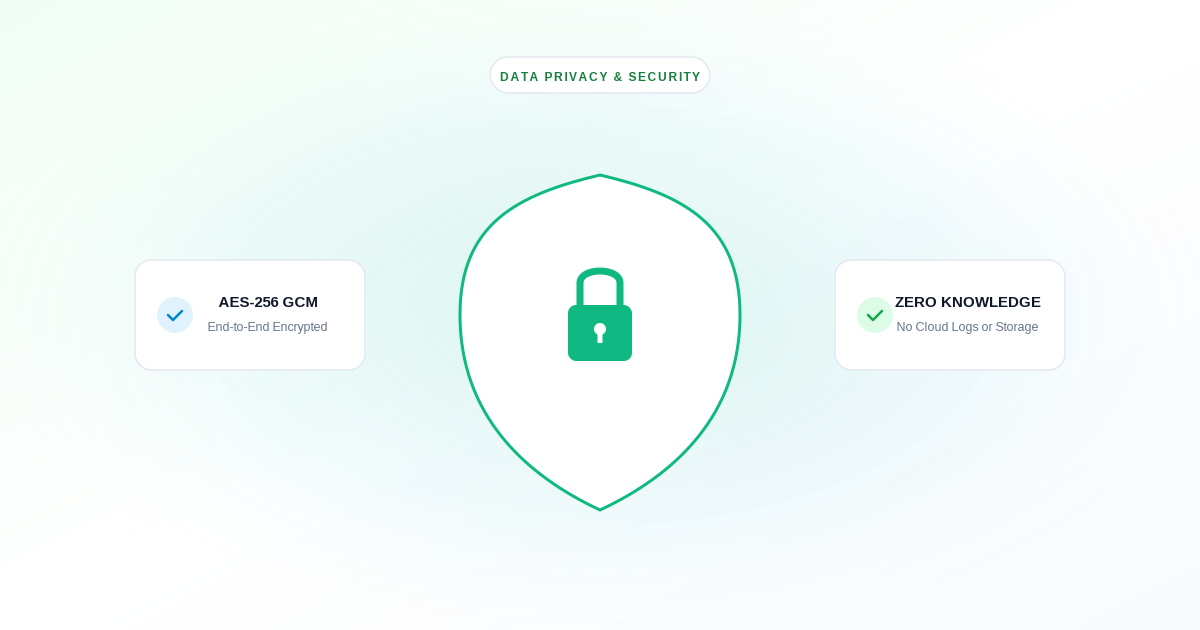
With peer-to-peer (P2P) sharing, your file is never uploaded to a server. It moves directly between the two devices over an encrypted connection.
- Best for: very large files, private files, and quick one-off transfers.
- No limits to hit: nothing is stored on a server, so there is no storage quota to run out of.
- Private: no copy of your file is kept online.
- Fast start: the download begins as soon as the receiver opens the link.
| Cloud storage | Transfer websites | FileDropShare (P2P) | ||
|---|---|---|---|---|
| Handles big files | No | Yes | Up to a free-plan cap | Yes |
| Sign-up needed | Yes | Usually | Sometimes | No |
| Upload wait | Yes | Yes | Yes | No |
| File stored on a server | Yes | Yes | Yes | No |
Why Peer-to-Peer Is the Easiest Way to Share Big Files for Free
Most “free” file sharing costs the provider money to store and serve your file, which is why they add size caps, expiring links and sign-up walls. P2P skips that step entirely. There is no file on a server, so there is nothing to cap.
If you want to see how it works under the hood, read our guide on how P2P file sharing works with WebRTC. For sensitive files, our best practices for secure and private file transfers cover what to check before you hit send.
How to Share a Zip File or a Folder
FileDropShare sends files, so to share a whole folder, compress it first:
- Windows: right-click the folder, choose Send to then Compressed (zipped) folder.
- Mac: right-click the folder and choose Compress.
Then add the zip file and share the link like any other file. Zip files of any size work the same way.
Tips for Sending Big Files Smoothly
- Use a stable connection. Ethernet or strong Wi-Fi on both sides makes large transfers noticeably faster.
- Keep both devices awake. If a laptop goes to sleep, the transfer pauses.
- Check free disk space. The receiver needs room for the full file.
- Sending to a phone? The same link works on iPhone and Android. See our cross-platform transfer guide.
Frequently Asked Questions
Can I really share big files for free with no sign-up?
Yes. FileDropShare is free and needs no account, email or registration. Add a file, share the link, done.
Is there a file size limit?
No. The file is not stored on a server, so there is no storage cap. You can share files of 10GB, 50GB or more, as long as both devices stay connected.
How do I share big files online without registration?
Open FileDropShare, add your file and copy the generated link. The receiver opens the link and downloads the file directly. Neither side signs up for anything, which makes it free online file sharing without registration.
Is it safe to share big files this way?
Transfers go directly between the two devices over an encrypted peer-to-peer connection, and your file is never uploaded to our servers. Only people who have your link can download it, so share the link with the right person.
Can I share files from my phone?
Yes. It works in any modern mobile browser on iPhone and Android, and you can share the link or show the QR code to the receiver.
Share Your Big Files Now
You don’t need an account, a subscription or a cloud plan to send a large file. Pick your file, share the link, and let the other person download it directly.
Share big files for free on FileDropShare: no sign-up, no size limit, and no upload wait.