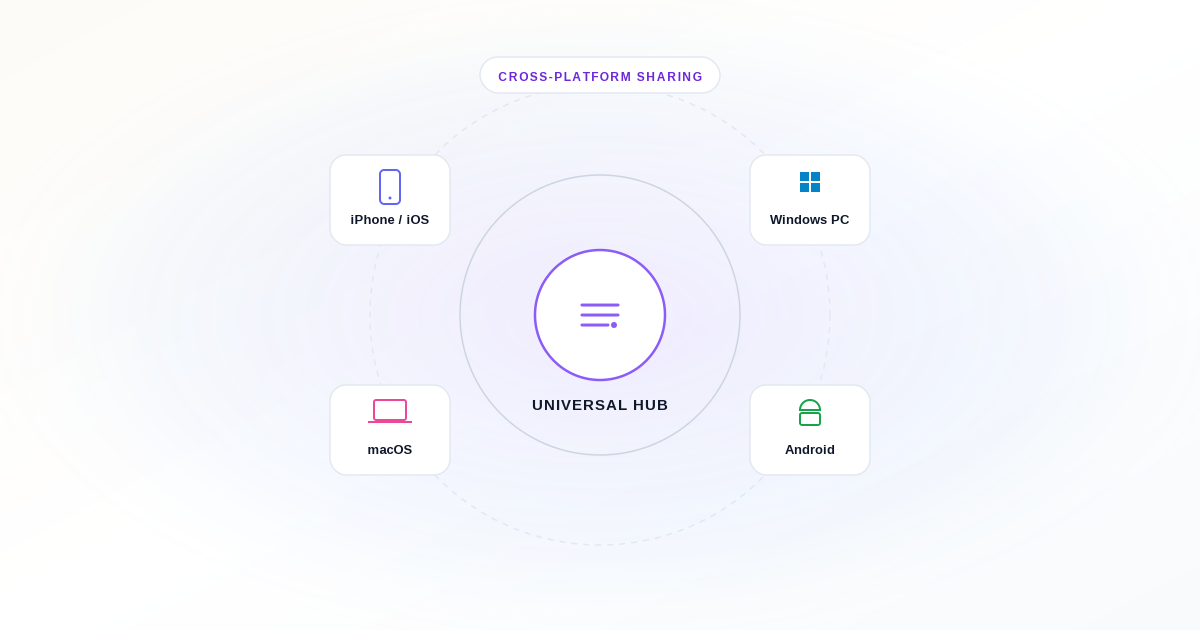
We’ve all faced the dreaded “walled garden” dilemma: Apple makes it delightful to AirDrop a 4K video from an iPhone to a Mac, but the moment you need to send that same file from an iPhone to a Windows PC or from an Android device to a MacBook, the experience grinds to a halt.
Cables require specialized drivers or iTunes, cloud services compress your images and throttle bandwidth, and emailing large attachments usually bounces with a “file too large” warning.
Here is your comprehensive playbook for moving files seamlessly across any combination of platforms without installing sketchy third-party desktop drivers.
The Walled Garden Problem: Why Cross-OS Transfer Stinks
Apple’s AirDrop relies on proprietary Wi-Fi Direct and Bluetooth handshakes restricted strictly to Apple hardware. Similarly, Google’s Quick Share (formerly Nearby Share) works wonderfully inside the Android and ChromeOS ecosystem, but cross-operating-system support remains clunky at best.
| Source -> Destination | Traditional Obstacles | Recommended Modern Solution |
|---|---|---|
| iPhone -> Windows | Requires Lightning/USB-C iTunes sync or iCloud Web | FileDropShare Web P2P |
| Windows -> iPhone | No native AirDrop support; complex SMB sharing | FileDropShare Web P2P |
| Android -> Mac | Android File Transfer app is notoriously buggy | FileDropShare Web P2P |
| Mac -> Android | Bluetooth transfer is painfully slow | FileDropShare Web P2P |
Method 1: The Browser-Based P2P Approach (Fastest & Universal)
The cleanest way to bridge incompatible operating systems is using the one application found on every single modern device: the web browser.
By pairing both devices via a secure QR code or 6-digit connection ID using WebRTC, you establish a direct Wi-Fi/LAN connection between your devices.
Step-by-Step Instructions:
- Open FileDropShare: On your primary device (e.g., iPhone or Mac), open FileDropShare in Safari, Chrome, or Firefox.
- Scan the QR Code or Enter Key: On your second device (e.g., Windows PC or Android), open your browser and scan the on-screen QR code (or type the simple connection ID).
- Select Your Files: Drag and drop your photos, RAW videos, PDFs, or ZIP archives into the upload area.
- Instant Transfer: Watch the transfer complete in real time. Because both devices communicate directly over your local Wi-Fi router, transfer speeds often exceed 50 MB/s to 100 MB/s, completely unhampered by internet upload speeds!
💡 Pro-Tip: If both devices are connected to the same Wi-Fi router, the transfer stays entirely local. Your internet quota is not consumed!
Method 2: Local Network Shares (SMB / SFTP)
For technical users comfortable with command lines and network configurations, setting up an SMB (Server Message Block) network share is another option:
- On Windows: Right-click a folder -> Properties -> Sharing -> Share -> select users.
- On iPhone: Open the native Files app -> tap the three dots
(...)in the top right -> tap Connect to Server -> entersmb://YOUR_PC_IP_ADDRESS.
Drawback: Setting this up requires fixed local IPs, opening firewall ports, configuring user permissions, and entering passwords manually on mobile touchscreens. For quick, one-off file swaps, this quickly becomes tedious.
Method 3: Cloud Storage Drives (Google Drive, OneDrive, iCloud)
Cloud storage is universally accessible, but comes with well-known drawbacks:
- Two-way delay: You must upload 100% of the file to the cloud, wait for processing, then download 100% of the file onto the other device.
- Storage quotas: Free plans typically cap out at 5GB (iCloud/OneDrive) or 15GB (Google Drive).
- Privacy: Cloud providers routinely scan files for automated content moderation.
Best Practices for Mobile-to-Desktop Sharing
- Avoid Photo Compression: When sharing photos from an iPhone, select “Current” format instead of “Automatic” in iOS Settings to preserve full RAW / ProRAW metadata.
- Transfer Folders as ZIPs: If you need to send 200 individual documents, zip them into a single archive before sending to maximize socket throughput.
- Keep the Browser Tab Active: Mobile operating systems (especially iOS) will pause background browser tabs after 30 seconds to conserve battery. Keep your screen unlocked until the progress bar reaches 100%.
Conclusion
You don’t need a single-ecosystem setup to enjoy fast, friction-free file sharing. With browser-powered peer-to-peer technology, cross-device transfers between iPhone, Windows, Mac, and Android take just a matter of seconds.
Start transferring your cross-platform files right now without accounts or software installs!